Cancel SEE Finance 2 Subscription
Published by Scimonoce Software LLC on 2025-09-16Uncover the ways Scimonoce Software LLC (the company) bills you and cancel your SEE Finance 2 subscription.
🚨 Guide to Canceling SEE Finance 2 👇
Note before cancelling:
- The developer of SEE Finance 2 is Scimonoce Software LLC and all inquiries go to them.
- Check the Terms of Services and/or Privacy policy of Scimonoce Software LLC to know if they support self-serve subscription cancellation:
- Always cancel subscription 24 hours before it ends.
🌐 Cancel directly via SEE Finance 2
- 🌍 Contact SEE Finance 2 Support
- Mail SEE Finance 2 requesting that they cancel your account:
- E-Mail: team@joindaba.com
- Login to your SEE Finance 2 account.
- In the menu section, look for any of these: "Billing", "Subscription", "Payment", "Manage account", "Settings".
- Click the link, then follow the prompts to cancel your subscription.
End SEE Finance 2 subscription on iPhone/iPad:
- Goto Settings » ~Your name~ » "Subscriptions".
- Click SEE Finance 2 (subscription) » Cancel
Cancel subscription on Android:
- Goto Google PlayStore » Menu » "Subscriptions"
- Click on SEE Finance 2
- Click "Cancel Subscription".
💳 Cancel SEE Finance 2 on Paypal:
- Goto Paypal.com .
- Click "Settings" » "Payments" » "Manage Automatic Payments" (in Automatic Payments dashboard).
- You'll see a list of merchants you've subscribed to.
- Click on "SEE Finance 2" or "Scimonoce Software LLC" to cancel.
Have a Problem with SEE Finance 2? Report Issue
About SEE Finance 2?
1. iCloud Drive lets you access your files from multiple devices, keeps them secure, and under your control.
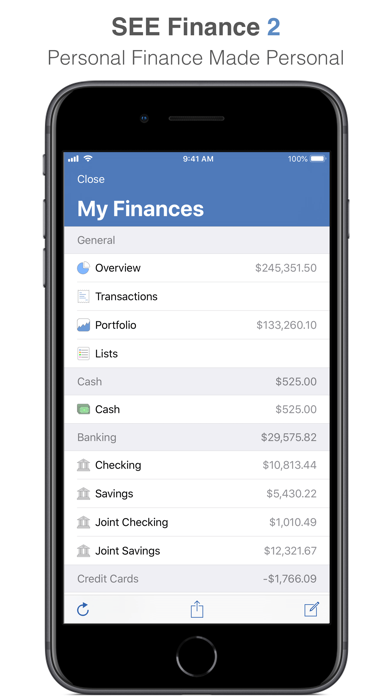
2. Manage all of your financial accounts in a single place and gain control over your finances.
3. Track all of the financial accounts you might have including banking, credit cards, investments and others.
4. Packed full of options to allow you to take total control of your finances.
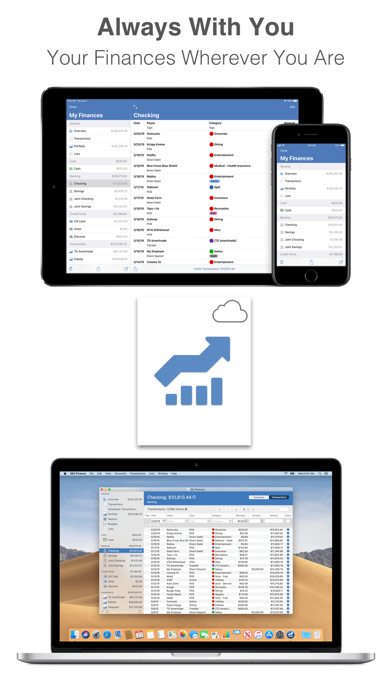
5. Store your file(s) on iCloud Drive and access them from your Mac, iPhone and iPad.